
A WordPress website needs care even after it goes live. Plugins get updates, forms can stop working, and old files can slow down pages. Without regular checks, small issues may grow into problems that affect visitors. WordPress maintenance means checking, updating, and protecting your site so it keeps working as expected.
You do not need to be a developer to handle every task. A simple routine can help you spot trouble early. This guide explains the key steps in WordPress maintenance, from updates and backups to security, website speed, and maintenance mode. It also covers how to plan your work and when to ask for help.
What Is WordPress Maintenance?
WordPress maintenance is the regular work needed to keep a WordPress site safe, current, and easy to use. It includes checking the WordPress software, themes, plugins, pages, and important features. It also means saving backups and fixing issues before they affect customers.
Think of WordPress maintenance as basic care for your website. A site can look perfect on the front end while an old plugin or broken contact form creates problems behind the scenes. Routine checks help you notice these issues.
Why Does WordPress Maintenance Matter?
Good WordPress maintenance helps reduce avoidable errors and keeps the website easier to manage. Updates can fix known software problems. Backups give you a way to recover after a failed change. Regular testing also helps you find broken links, missing images, or forms that no longer send messages.
For a business website, these details matter. Imagine a customer filling out a quote form that never reaches your inbox. A quick test during WordPress maintenance could catch the problem before you miss more enquiries.
Essential WordPress Maintenance Tasks
Regular WordPress maintenance includes software updates, security checks, backups, and performance testing. Business owners who need help with these tasks can explore website maintenance services in Dubai to keep their websites secure, updated, and running smoothly.
1. Update WordPress Core, Themes, and Plugins
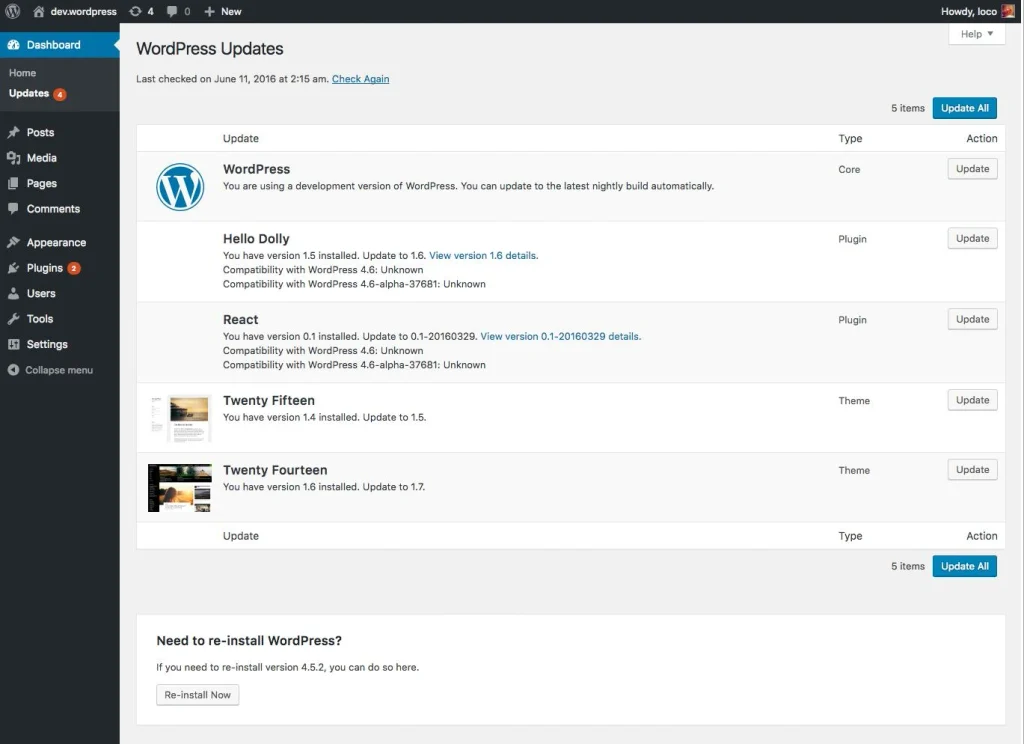
Start WordPress maintenance by checking for updates under Dashboard → Updates. WordPress core is the main software that runs your site. Themes control the design, while plugins add features. Updates may improve security, fix errors, or add useful changes.
Before updating anything, make a backup. Then install updates in small groups and test your pages. If your site has an online store or custom features, try major changes on a staging site first. A staging site is a private copy where you can test safely.
If you are searching for how to update wordpress theme, follow these steps:
- Save a full backup of your website.
- Open Dashboard → Updates or Appearance → Themes.
- Select the theme update when one is available.
- Check the homepage, menus, mobile layout, and key pages afterward.
Never edit a parent theme directly if you expect its files to survive future updates. Use a child theme for custom code. Learning how to update wordpress theme safely is an important part of WordPress maintenance.
2. Create and Test Website Backups
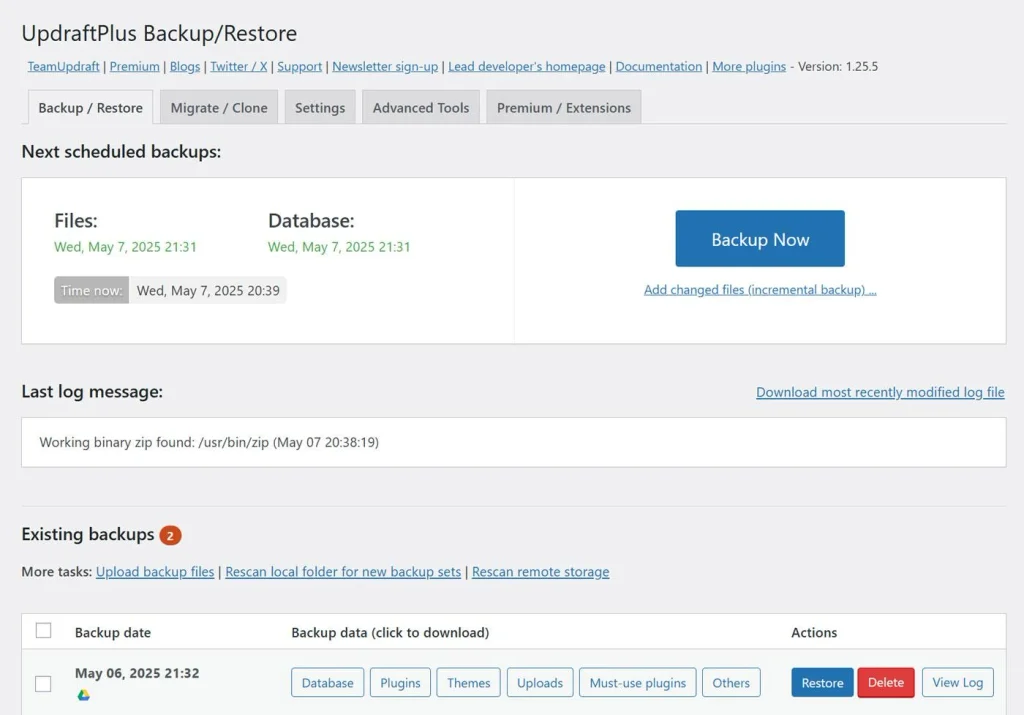
A backup of wordpress website data should include both files and the database. Files hold themes, plugins, and uploaded images. The database stores posts, pages, settings, and other site content.
For WordPress maintenance, choose a backup tool offered by your host or a reliable backup plugin. Save a copy somewhere separate from your main server. If your website changes daily, back it up more often than a site that rarely changes.
Do not stop after saving files. Test a restore on a staging site when possible. A backup of wordpress website data is useful only if you can recover it when needed.
3. Check Security and User Access
Security is a core part of WordPress maintenance. Remove plugins and themes you no longer use, even if they are inactive. Give each person only the access they need. Use strong passwords and turn on two-factor login when available.
Review unknown admin accounts and watch for sudden changes to your pages. Use a trusted security tool to help spot suspicious files or login activity. No plugin can promise total safety, but regular WordPress maintenance lowers avoidable risks.
4. Test Speed, Links, and Forms
A slow website can frustrate visitors. During WordPress maintenance, test your site on a phone as well as a desktop. Look for large images, unneeded plugins, and pages that take too long to load.
Check contact forms, booking buttons, checkout pages, and WhatsApp links. Make sure test messages arrive. Fix broken links and review old text or prices. These simple WordPress maintenance checks protect the visitor experience.
How to Enable WordPress Maintenance Mode
WordPress maintenance mode shows visitors a temporary message while you work on major changes. It is useful when an update could briefly break a page or when you need to test a new layout. You do not need to hide your whole website for every small content edit.
If you want to know how to enable maintenance mode in wordpress, there are two common options.
Option 1: Use Elementor
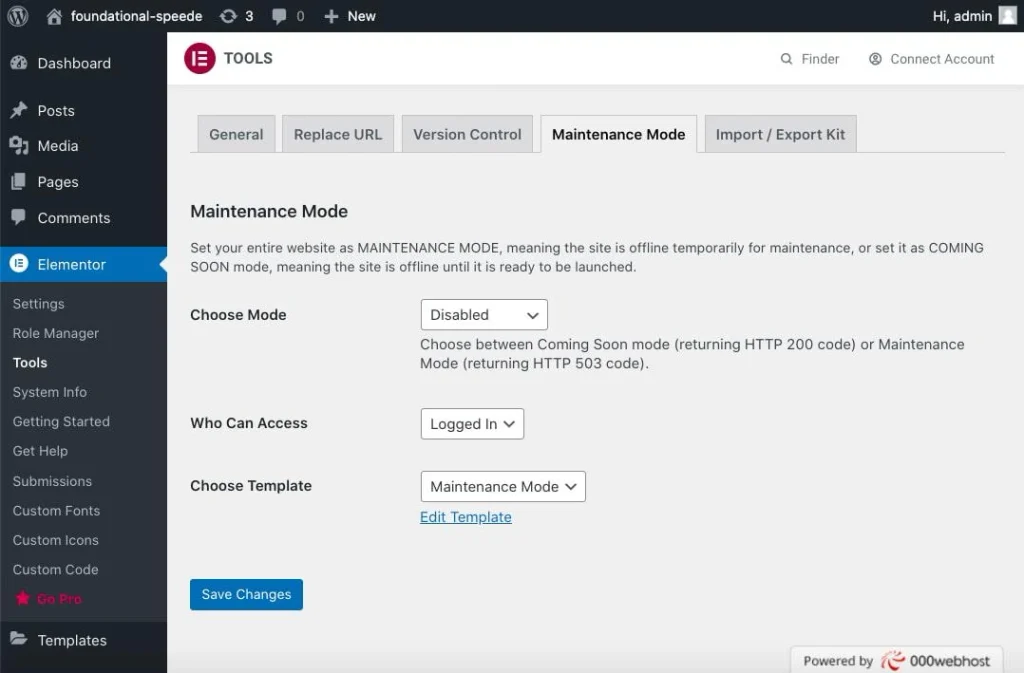
If your site uses Elementor, create or select a maintenance page template. In current versions, open Elementor → Editor → Tools → Maintenance Mode. Select Maintenance, choose who can see the normal site, pick your template, and save. When the work is done, switch the mode back to Disabled.
Elementor’s maintenance setting can send a temporary HTTP 503 response. This tells search engines that the downtime is temporary, although you should still keep it brief.
Option 2: Use a Maintenance Plugin
Search for maintenance plugin wordpress in your WordPress plugin area to explore suitable tools, or search by a plugin’s name. Check recent updates, compatibility, and reviews before installing one. Activate the plugin, create your message, and switch on wordpress maintenance mode in its settings.
A good maintenance plugin wordpress search should lead you to a tool that lets administrators work while visitors see a simple notice. Test it in a private browser window. If you are learning how to enable maintenance mode in wordpress, remember to turn it off after your work and check the live site again.
WordPress also shows a short maintenance notice automatically during some updates. That built-in message is different from a custom page you choose to display.
Make a Simple WordPress Maintenance Checklist
You can divide WordPress maintenance into small jobs instead of trying to fix everything at once. The right schedule depends on how often your site changes.
| When | What to check |
| Daily, for busy sites | Contact forms, orders, and urgent alerts |
| Weekly | Backups, available updates, and key pages |
| Monthly | User access, security reports, speed, and broken links |
| After major changes | Layout, forms, mobile display, and restore options |
A quiet brochure website may need fewer checks than a busy online store. Use this list as a starting point, then adjust your WordPress maintenance routine to match your actual risks.
WordPress Maintenance Plans and Costs in Dubai
Some owners manage updates themselves. Others choose wordpress maintenance plans that include scheduled checks, backups, security reviews, and help when something breaks. A plan may be helpful if your website handles orders or leads every day.
The website maintenance cost in dubai depends on your website’s size, features, update needs, and the support included. A simple site usually takes less work than a store with payments, stock, and many plugins. Ask what is covered before agreeing to a monthly fee.
When comparing wordpress maintenance plans, check whether backups are tested, how urgent issues are handled, and whether updates include a review afterward. A low price is not useful if important tasks are left out. If you are comparing website maintenance services dubai, choose support that fits your real needs rather than the longest list of features.
A healthy website needs more than regular updates and backups. Its design, speed, and ease of use also affect how visitors experience it. A professional website design in Dubai can help businesses create a website that looks good, works smoothly, and is easy to manage.
Common WordPress Maintenance Mistakes to Avoid
A rushed WordPress maintenance routine can create new problems. The most common mistake is updating several plugins without first saving a backup. Another is assuming that a green update notice means every page still works.
Avoid keeping unused plugins, ignoring failed backups, or leaving a temporary maintenance page active for days. Do not make major live-site changes during your busiest hours when you can plan a quieter time. Good WordPress maintenance is careful, not complicated.
Conclusion
WordPress maintenance works best when it becomes a regular habit. Keep software updated, back up both files and data, check security, and test the pages people use most. Use maintenance mode when a larger change needs a temporary pause, then switch it off and check the site again.
You do not need an expensive system to get started. Begin with a short checklist and build a routine that suits your website. Over time, steady WordPress maintenance helps you spot small problems early and keeps your site more dependable for visitors.
Frequently Asked Questions
1. How often should I perform WordPress maintenance?
For most business websites, a weekly check is a useful starting point. Look for updates, confirm backups are running, and test the main contact form. Busy stores may need daily checks of orders and key features. The best WordPress maintenance schedule depends on how often your site changes and how much downtime would affect you.
2. Can I do WordPress maintenance myself?
Yes. Many tasks, such as updating content, checking forms, and reviewing backup reports, can be done by a careful site owner. Take a backup before major changes and test the result. If you see a serious error, unknown admin account, or broken checkout, ask a qualified developer for help rather than guessing.
3. Does WordPress maintenance mode affect SEO?
A short period of wordpress maintenance mode is usually manageable when your site sends the correct temporary response and returns online promptly. Elementor’s maintenance option uses HTTP 503 for temporary downtime. Do not leave a maintenance page active longer than needed. Check that visitors and search engines can reach your regular pages after the work.
4. What should be included in a WordPress backup?
A full backup should save your website files and database. This includes uploads, themes, plugins, posts, settings, and important site records. Keep copies away from the live server, and check that you can restore them. A backup that cannot be restored will not help much after an error or failed update.
5. How much does WordPress website maintenance cost in Dubai?
There is no single price for every site. The website maintenance cost in dubai changes with the number of pages, plugins, store features, backup needs, and support level. Ask for a clear list of tasks, response times, and any extra charges. This makes it easier to compare offers without choosing on price alone.
6. When should I hire a WordPress maintenance specialist?
Consider professional help when updates keep breaking your design, backups fail, or your site handles important customer orders. Providers offering website maintenance services dubai may help with updates, security reviews, and technical fixes. Before choosing one, ask how they test changes, handle emergencies, and explain the work they complete.