
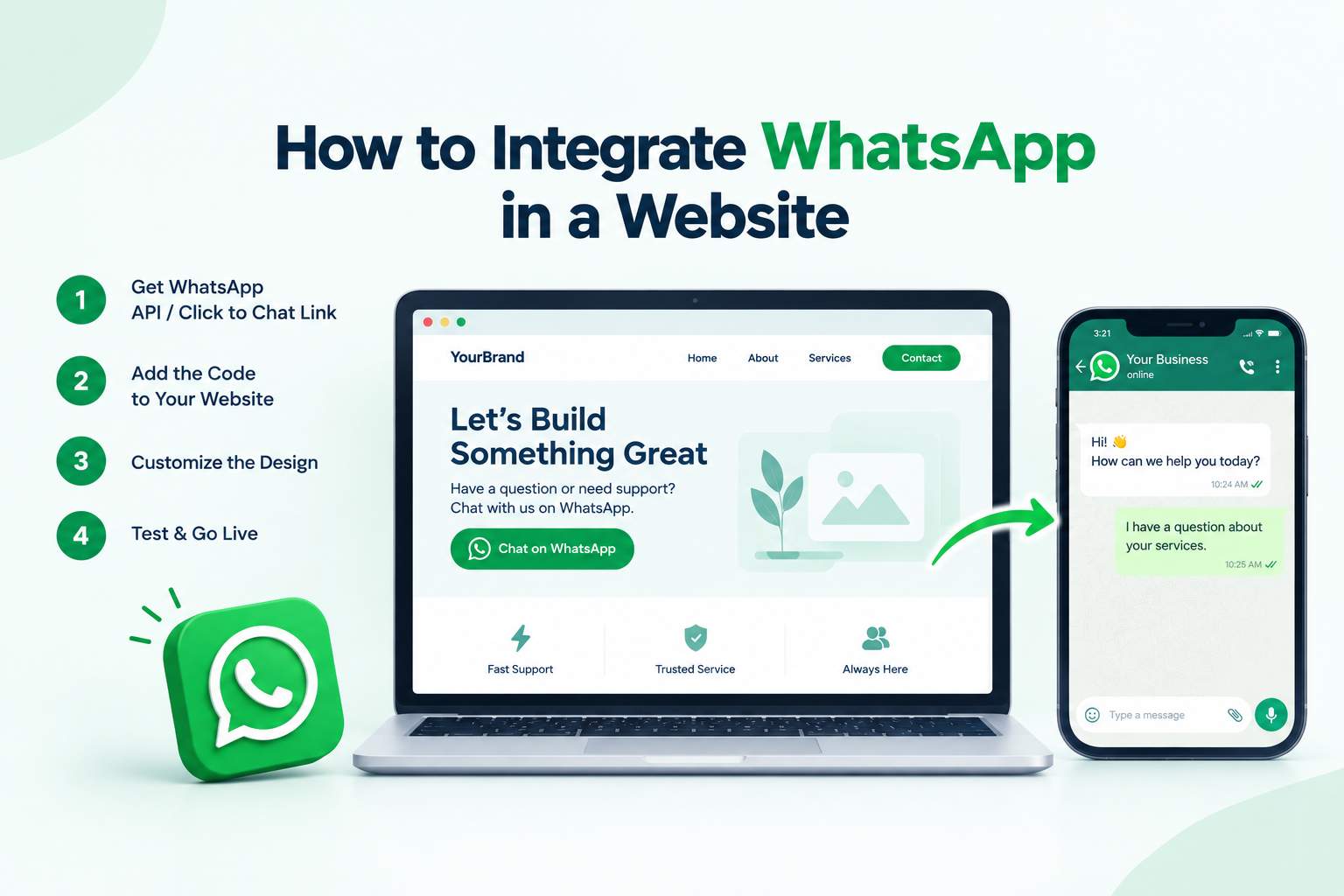
Want visitors to contact you directly from your website? Adding a WhatsApp chat button is one of the simplest ways to make that possible.
To integrate WhatsApp into a website, create a link using https://wa.me/ followed by your WhatsApp number in international format. You can add that link to a button, use HTML and CSS to create a floating chat icon, or install a WhatsApp plugin on WordPress.
For businesses in Dubai, WhatsApp can be a useful way to answer customer questions, discuss services, and receive enquiries without asking visitors to fill out a long form.
In this guide, you’ll learn how to add WhatsApp to different website platforms, customize your button, set up automatic message text, and track interactions.
What Is WhatsApp Website Integration?
WhatsApp website integration means connecting a website to WhatsApp so visitors can start a conversation with a business.
For example, imagine someone visits a cleaning company’s website in Dubai. They read about the services, check the prices, and want to ask whether same-day cleaning is available.
Instead of searching for a phone number, they click the WhatsApp button and send their question.
There are different ways to add this feature. A basic WhatsApp link opens a chat in the WhatsApp application or WhatsApp Web. A floating button stays visible as visitors scroll. More advanced integrations can support messaging automation and team communication.
You don’t need an expensive system to get started. A simple link is enough for many small business websites.
Why Should You Add WhatsApp to Your Website?
Adding WhatsApp gives visitors another way to contact your business while browsing your website.
This can be particularly useful for service businesses in Dubai, where customers may want to ask about prices, availability, appointments, or project requirements before making a decision.
Easier customer enquiries
Visitors can start a conversation without completing a lengthy contact form. This is useful for quick questions about services, quotations, and availability.
Better mobile accessibility
Customers browsing on smartphones can open WhatsApp directly, provided the application is available on their device.
More convenient communication
WhatsApp lets customers continue the conversation after leaving your website. They can return to the chat when they have more questions.
Another contact option
A WhatsApp button works alongside your contact form, email address, and telephone number. Visitors can choose whichever method suits them.
However, adding a chat button does not automatically increase enquiries. The button needs a clear purpose and sensible placement.
If you want to improve the wider customer journey, my guide to website conversion rate optimization explains how calls to action, navigation, trust signals, and contact methods work together.
What Are the Different Ways to Add WhatsApp to a Website?
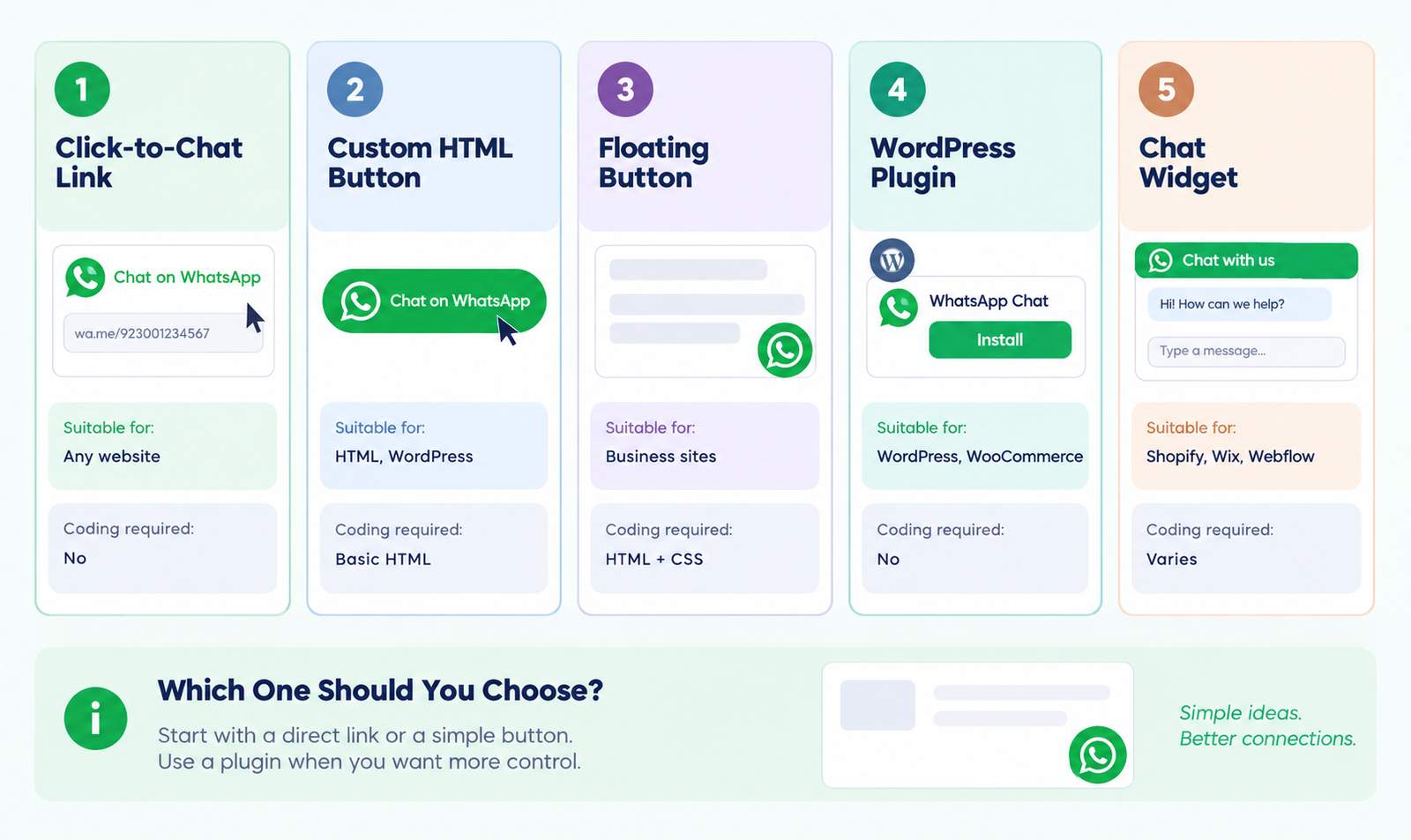
You can add WhatsApp using a direct link, an HTML button, a floating chat widget, or a platform-specific plugin.
The right option depends on how your website is built and how much control you need over the design.
| Method | Suitable for | Coding required |
|---|---|---|
| WhatsApp click-to-chat link | Any website with editable links | No |
| Custom HTML button | HTML websites, WordPress, Elementor | Basic HTML |
| Floating WhatsApp button | Business and service websites | HTML and CSS |
| WordPress WhatsApp plugin | WordPress and WooCommerce | No |
| Third-party chat widget | Shopify, Wix, Webflow and other platforms | Depends on the widget |
For a small business website, I would normally start with a direct link or a lightweight custom button. A plugin becomes useful when you need additional display controls or want to manage the integration without editing code.
How to Create a WhatsApp Click-to-Chat Link
The easiest way to integrate WhatsApp is to create a click-to-chat URL.
WhatsApp supports the following format:
The number above is an example. Replace it with your own WhatsApp number.
For a UAE number, use 971 as the country code, followed by the phone number without its leading zero.
Follow these steps:
- Open your website editor.
- Add a button or text link.
- Enter your WhatsApp URL in the link field.
- Set the button text to something useful, such as “Chat on WhatsApp” or “Request a Quote”.
- Save the changes and publish your website.
- Test the button on both mobile and desktop devices.
Do not include a plus sign, spaces, brackets, or hyphens in the wa.me phone number.
For example, a UAE number displayed as +971 50 123 4567 becomes 971501234567 in the URL.
You can also use the same link in a website header, footer, contact page, or service section.
How to Add a WhatsApp Button Using HTML
If your website supports custom HTML, you can create a WhatsApp button without installing a plugin.
Here is a basic example:
<a
  href="https://wa.me/971501234567"
  target="_blank"
  rel="noopener noreferrer"
  aria-label="Chat with us on WhatsApp"
>
  Chat on WhatsApp
</a>
Replace the sample number with your business WhatsApp number.
The <a> element creates the clickable link. The href attribute contains the WhatsApp URL, while target="_blank" opens the destination in a new tab where supported.
This method is useful when you already have a button design and only need to connect it to WhatsApp.
You can place the HTML inside a custom HTML block in WordPress or another website builder that supports custom code.
How to Add a Floating WhatsApp Button Using HTML and CSS
A floating WhatsApp button stays near the bottom corner of the screen as visitors move through your website.
It is useful for service websites with long pages because visitors don’t need to scroll back to the contact section.
Here is a simple floating button with HTML and CSS:
<a
  class="wa-floating-btn"
  href="https://wa.me/971501234567"
  target="_blank"
  rel="noopener noreferrer"
  aria-label="Chat on WhatsApp"
>
  Chat on WhatsApp
</a>

<style>
.wa-floating-btn {
  position: fixed;
  right: 20px;
  bottom: 20px;
  z-index: 999;
  background: #25D366;
  color: #111;
  padding: 14px 20px;
  border-radius: 50px;
  font-family: Arial, sans-serif;
  font-size: 14px;
  font-weight: 600;
  text-decoration: none;
  box-shadow: 0 4px 15px rgba(0,0,0,.15);
}

.wa-floating-btn:hover {
  background: #20bd5a;
  color: #111;
}

.wa-floating-btn:focus-visible {
  outline: 3px solid #111;
  outline-offset: 3px;
}

@media (max-width: 600px) {
  .wa-floating-btn {
    right: 12px;
    bottom: 12px;
    padding: 12px 16px;
  }
}
</style>
This code creates a floating text button in the bottom-right corner. It is not an official WhatsApp-branded graphic button.
You can adjust the padding, font, and positioning to match your website design.
Be careful with mobile placement. A floating button should not cover navigation menus, cookie controls, checkout buttons, or other important content.
How to Add WhatsApp Chat to a WordPress Website
You can integrate WhatsApp into WordPress using a plugin, a button block, or custom HTML.
If you want a simple contact button, you may not need a plugin at all. Just add a button in the WordPress editor and paste your WhatsApp link.
For a floating chat button with more settings, a dedicated plugin can be easier to manage.
Method 1: Use a WhatsApp plugin
- Log in to your WordPress dashboard.
- Go to Plugins → Add New.
- Search for “Click to Chat” or another suitable WhatsApp plugin.
- Install and activate the plugin.
- Enter your WhatsApp number.
- Configure the button position and greeting message.
- Save the settings and test the published website.
The Click to Chat plugin by HoliThemes includes options for mobile and desktop display, shortcodes, and other customization settings.
Method 2: Use Elementor
If your WordPress website uses Elementor, you can add a WhatsApp button without an additional plugin.
Open the page in Elementor, add a Button widget, and paste your WhatsApp link into the Link field.
You can customize the text, colors, border radius, and spacing through Elementor’s design controls.
For a custom floating button, add an HTML widget and paste the HTML/CSS example from the previous section.
If you’re planning a new WordPress website, I can also help with custom web design and development in Dubai based on your business requirements.
How to Add WhatsApp to a Wix Website
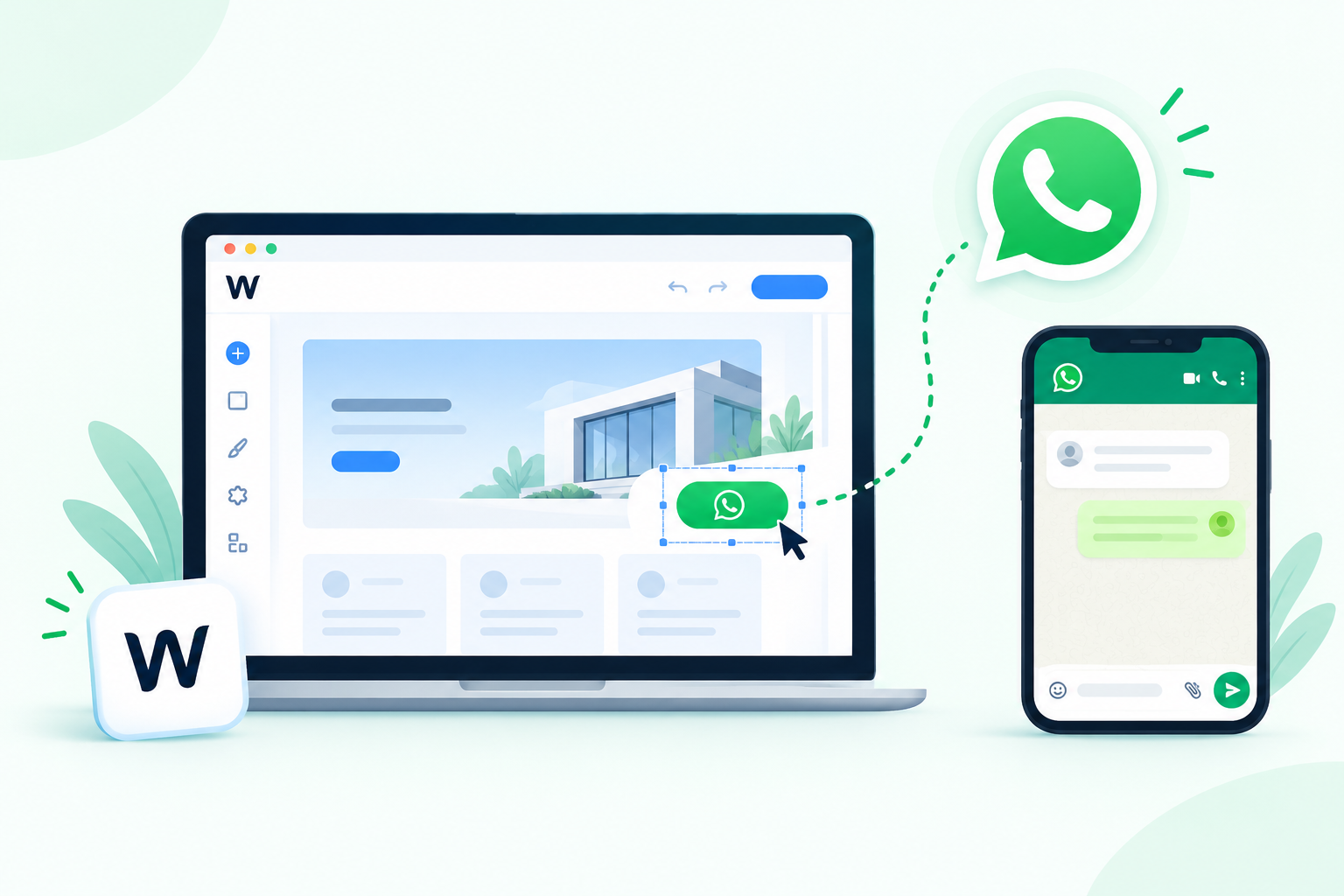
Wix lets you add a WhatsApp contact link through its website editor.
You can use an existing button, create a new contact button, or add a supported third-party widget.
For a basic integration, open the Wix editor and select the button you want visitors to click.
Find the link settings, choose the web address option, and paste your wa.me link.
You can then change the button text and appearance to match your website.
For a Wix Studio website, check the button’s responsive placement across desktop, tablet, and mobile breakpoints.
If your website has several service pages, consider whether the WhatsApp button should appear everywhere or only where visitors are likely to need help.
How to Integrate WhatsApp into Shopify
Shopify store owners can use WhatsApp to help customers ask about products, availability, delivery, or order-related questions.
The simplest approach is to add a WhatsApp link to a button or supported theme section.
For example, a clothing store in Dubai might place a “Ask About This Product” button near the product information.
A direct WhatsApp link is useful for general enquiries. If you want product-specific messages, you’ll need to configure the link so it includes relevant product information.
For more advanced features, Shopify-compatible messaging applications may offer chat widgets and customer support integrations.
Avoid installing several overlapping chat applications. Too many third-party scripts can make your website harder to maintain and may affect performance.
If you’re still planning your store, read my guide on building a successful e-commerce website for more about product pages, navigation, checkout, and website usability.
How to Add a Pre-Filled Message to a WhatsApp Button
A pre-filled WhatsApp message lets visitors open a conversation with text already written in the message box.
This is helpful when you want customers to mention a specific service or enquiry type.
For example, a web design business in Dubai could use:
When someone clicks the link, WhatsApp opens with the message:
“Hello, I need a website quote”
The visitor can edit the text before sending it.
You can create different messages for different pages. A restaurant might use a booking enquiry, while a real estate website might use a property enquiry.
Keep messages short and relevant. A long pre-filled message can feel unnatural and may discourage visitors from using it.
Remember that the message is not sent automatically. The visitor still needs to press Send.
Where Should You Place a WhatsApp Button on Your Website?
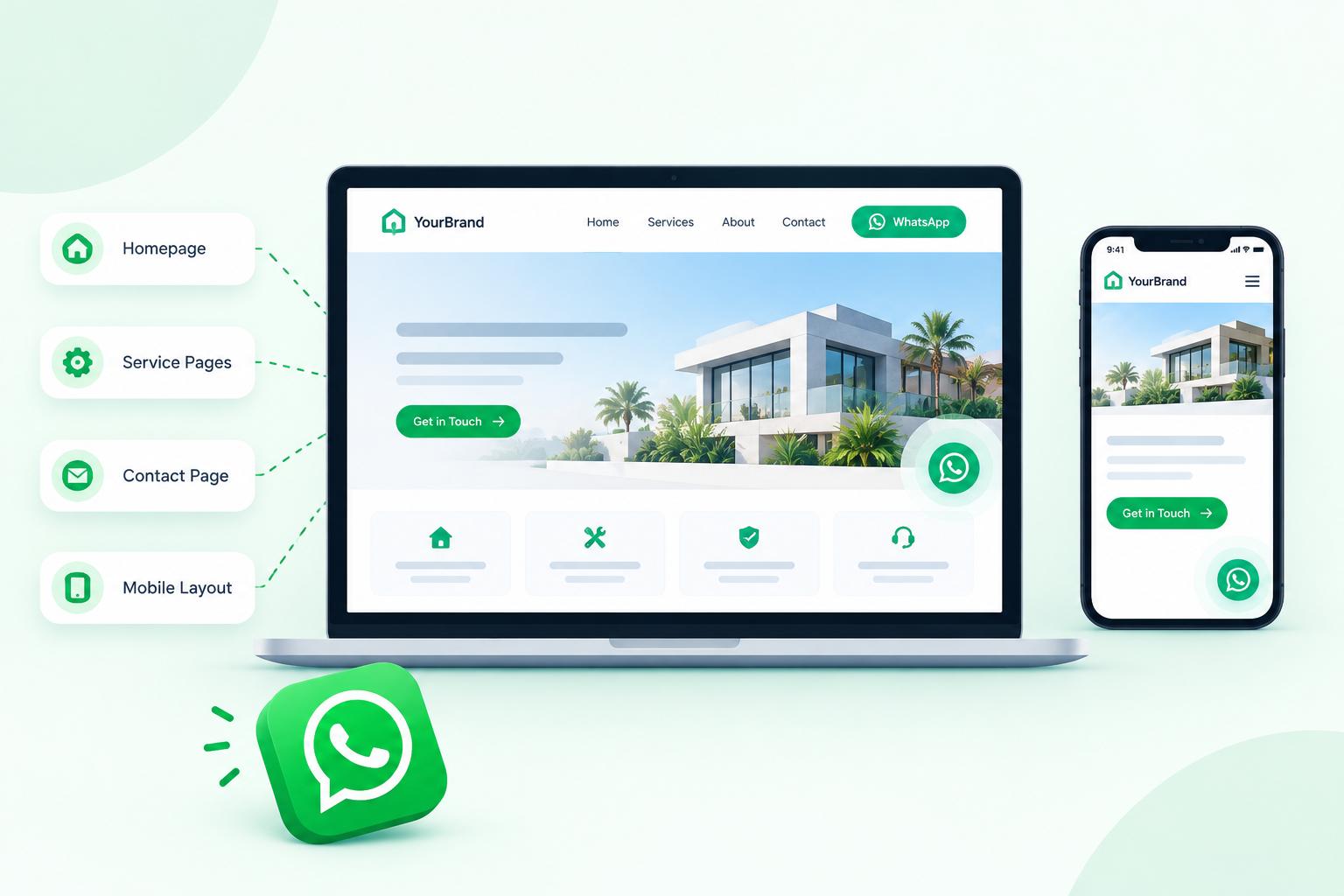
A WhatsApp button should appear where visitors are likely to need help or want to contact your business.
For a service business in Dubai, useful placements include the homepage, service pages, contact page, and mobile layout.
A floating button can make WhatsApp accessible throughout the website, but it isn’t necessary on every project.
For example, a quotation-focused landing page might work better with a clearly labelled WhatsApp button near the main call to action.
An e-commerce website might place a WhatsApp link near product details, while keeping the checkout process free from unnecessary distractions.
Button wording also matters. “Ask About This Service” gives more context than a generic chat label when the visitor is reading a specific service page.
The aim is to make communication easier without overwhelming the website design.
How to Track WhatsApp Button Clicks Using Google Analytics 4
You can measure WhatsApp button clicks using Google Analytics 4 (GA4), either through Google Tag Manager or another suitable tracking implementation.
A useful approach is to track clicks on links containing wa.me or other WhatsApp chat URLs.
For example, you could create a GA4 event named whatsapp_click and include information such as the page URL or button location.
This can help you understand which pages encourage visitors to open WhatsApp.
However, a WhatsApp click is not the same as a confirmed lead. The visitor may open the application without sending a message.
For accurate reporting, treat button clicks as interaction events. Measure completed enquiries separately where you have a reliable way to identify them.
If you’re reviewing how visitors move from your website to contact actions, my article about turning website visitors into customers explains the broader role of analytics and conversion tracking.
Why Is the WhatsApp Button Not Working?
A WhatsApp button may fail because of an incorrect phone number, broken URL, plugin conflict, or display problem.
Start by opening the WhatsApp link directly in your browser. If it does not work, check the country code and number formatting.
If the direct link works but the website button does not, inspect the button settings or HTML code.
On WordPress, a plugin may be configured to hide the button on certain pages or devices. Caching can also delay the appearance of recent changes.
Check whether the button is visible on both desktop and mobile.
If you use custom CSS, make sure the button is not hidden behind another element or positioned outside the visible screen.
After making changes, clear the relevant website cache and test again.
For websites that need regular technical checks, my website maintenance services in Dubai include testing enquiry buttons, forms, mobile layouts, and other important website features.
Do You Need the WhatsApp Business API for Website Integration?
No. You do not need the WhatsApp Business API to add a basic WhatsApp chat button to your website.
A simple wa.me link works without API development.
The WhatsApp Business API becomes relevant when your business needs more advanced messaging features, such as automated workflows, integration with business systems, or customer conversations managed by a team.
For example, a small interior design studio may only need a button that opens a conversation.
A larger company handling enquiries from several departments may need a more structured messaging setup.
The right solution depends on your business size, response process, and the features you actually need.
Frequently Asked Questions
Is it free to add WhatsApp to a website?
Yes. Creating a basic WhatsApp click-to-chat link and adding it to your website does not require a paid integration. However, premium widgets, development services, and advanced messaging platforms may have costs.
Can I add WhatsApp to my website without coding?
Yes. WordPress, Wix, Shopify, and other website builders allow you to add links to buttons. Some platforms also support WhatsApp plugins or third-party chat widgets.
Can I add a WhatsApp button using Elementor?
Yes. Add an Elementor Button widget, paste your WhatsApp link, and customize the design. You can also use an HTML widget for a custom floating button.
How do I add a WhatsApp icon to my website?
You can use an approved WhatsApp icon or a compatible website widget. Link the icon to your wa.me URL and give it an accessible label so visitors understand its purpose.
Can I use a UAE WhatsApp number on my website?
Yes. Use the UAE country code 971, followed by the number without its leading zero. For example, +971 50 123 4567 becomes 971501234567 in a WhatsApp link.
Does WhatsApp integration work on mobile devices?
Yes. A properly configured WhatsApp link can open the WhatsApp application on supported mobile devices. Visitors without the application may be offered another way to open the link.
Can I add WhatsApp to every page of my website?
Yes. You can use a global website element, plugin, or shared template to display a WhatsApp button across multiple pages. Check that the button doesn’t obstruct important content.
Can I track WhatsApp enquiries in Google Analytics?
You can track clicks on WhatsApp links through Google Analytics 4. However, website analytics alone cannot confirm whether someone actually sent a WhatsApp message.
Can I add a custom message to a WhatsApp link?
Yes. Add the ?text= parameter followed by URL-encoded text. The message appears in the chat composer for visitors to review and send.
Should I use WhatsApp instead of a contact form?
Not necessarily. WhatsApp is useful for quick conversations, while contact forms can collect structured project details. Many business websites benefit from offering both.
Need Help Adding WhatsApp to Your Website?
A WhatsApp button may be simple to add, but it should also work properly on mobile devices, fit your website design, and give visitors a clear way to contact you.
I’m Omer Farooq, a freelance web designer and developer in Dubai. I work with WordPress, Elementor, Wix Studio, Shopify, Webflow, and custom websites.
If you need help adding a WhatsApp chat button, improving your contact sections, or fixing an existing website feature, you can explore my website design and development services and discuss your project requirements.